SKU: 45320023455
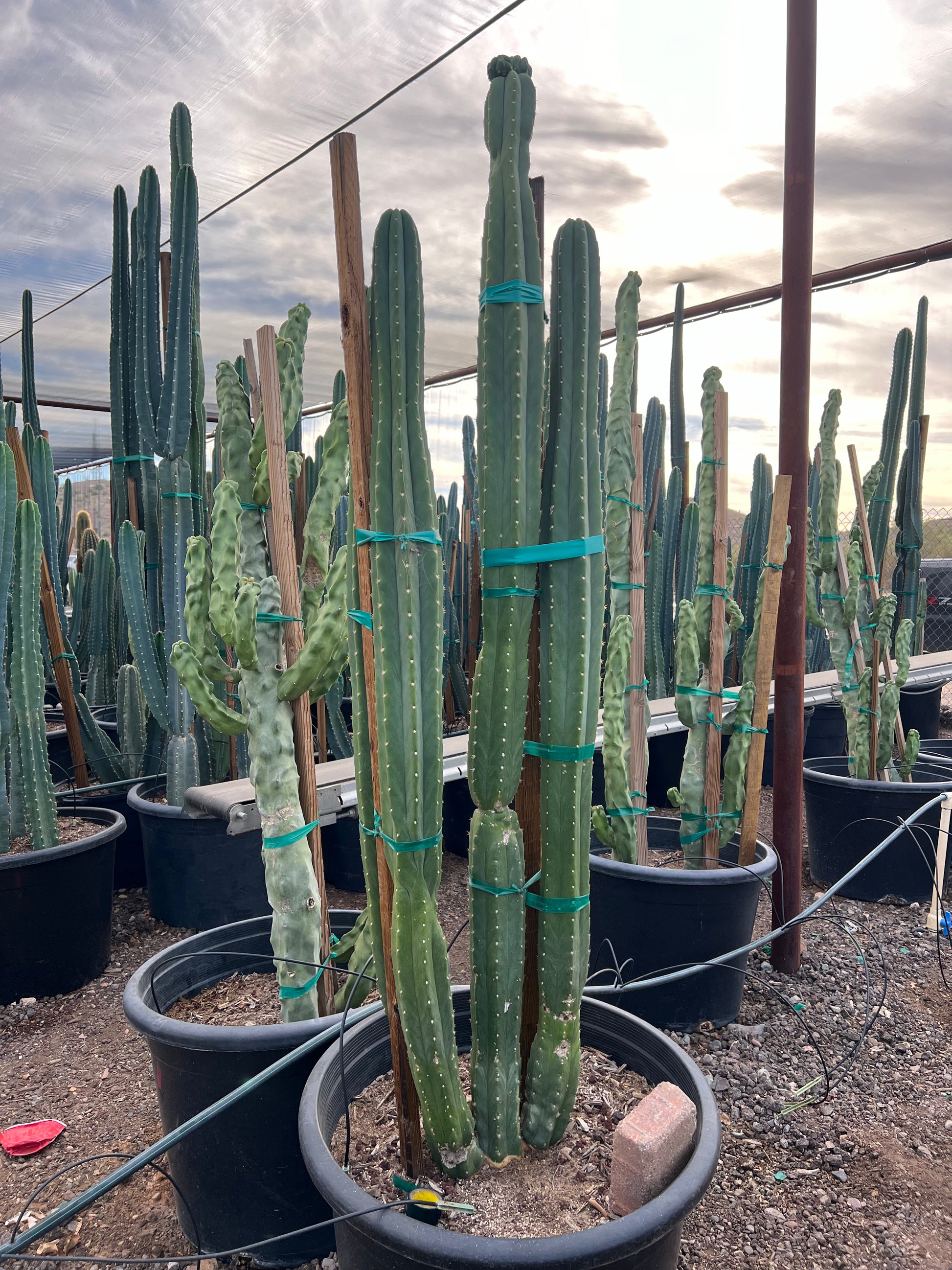
ornamental san pedro cactus

ornamental san pedro cactus Buy San Pedro Cactus Phoenix, AZ | Echinopsis pachanoi

Sale price$20.39 Regular price$22.66
Save 10%

Pay in installments of $5.67 with ShopPay, AfterPay and Klarna

Shipping Estimate
USA
  • USA
  • CAN

Ships within 48 hours · Estimated delivery Jul 21 - Jul 26

Promo Codes Available:

For Your Every Summer RSVP, with Code: SUMMER15

Description

ornamental san pedro cactus Buy San Pedro Cactus Phoenix, AZ | Echinopsis pachanoiA Towering Columnar Cactus for Phoenix Desert Gardens San Pedro The San Pedro Cactus (Echinopsis pachanoi) is one of the fastest growing columnar cacti available for Phoenix landscapes. Native to the Andes Mountains, this striking blue green cactus grows tall, ribbed columns that branch with age into dramatic multi stemmed specimens. San Pedro can reach 1020 feet tall in the Phoenix Valley, adding bold vertical structure to xeriscape gardens,

A Towering Columnar Cactus for Phoenix Desert Gardens — San Pedro

The San Pedro Cactus (Echinopsis pachanoi) is one of the fastest-growing columnar cacti available for Phoenix landscapes. Native to the Andes Mountains, this striking blue-green cactus grows tall, ribbed columns that branch with age into dramatic multi-stemmed specimens. San Pedro can reach 10–20 feet tall in the Phoenix Valley, adding bold vertical structure to xeriscape gardens, courtyard plantings, and modern desert designs. It produces spectacular large white flowers that bloom at night during summer — a rare treat for any garden. Whether you’re creating a sculptural cactus garden in Scottsdale, anchoring a Chandler desert border, or adding architectural drama to a Mesa backyard — San Pedro delivers fast growth and jaw-dropping form.

San Pedro Cactus Plant Details

Attribute Detail
Scientific Name Echinopsis pachanoi (syn. Trichocereus pachanoi)
Common Names San Pedro Cactus, Saint Peter Cactus
Mature Height 10–20 feet
Mature Width 4–6 feet (multi-branched clump)
Growth Rate Fast for a cactus — 1–2 feet per year in Phoenix
Sun Full sun to light shade. Handles reflected heat well.
Water Low once established. Drought-tolerant but appreciates occasional deep watering.
USDA Zones 9–11 (Phoenix is Zone 9b–10a)
Soil Well-draining required. Thrives in sandy, rocky Arizona soils and handles caliche with drainage.
Foliage Evergreen — blue-green ribbed columns year-round
Bloom Large white nocturnal flowers in summer — fragrant and spectacular

San Pedro Cactus Uses in Phoenix Landscapes

Sculptural Focal Point & Cactus Gardens

San Pedro’s tall, ribbed columns create dramatic vertical architecture in any desert garden. Plant a single specimen as a living sculpture in a Scottsdale courtyard, or group 3–5 for a columnar cactus grove effect. Pair with Golden Barrel, Totem Pole Cactus, and Mexican Fencepost for an all-columnar desert statement garden.

Modern Desert Borders & Property Screens

Because San Pedro branches and fills in with age, it makes an effective living screen or border plant. Space 3–4 feet apart along a Chandler property line or Gilbert fence to create a striking green wall. The columns grow fast enough to provide meaningful screening within 3–5 years.

Pool-Friendly & Low-Litter Plantings

San Pedro is an excellent pool-adjacent plant — it produces virtually no leaf litter, requires minimal trimming, and its smooth columns and minimal spines make it safer than many cacti. Plant along Tempe and Mesa pool perimeters for a clean, architectural look with zero maintenance debris.

Best Time to Plant San Pedro Cactus in Phoenix

Spring (March–May) is the ideal planting window. Warm soil and rising temperatures promote fast root establishment and active growth. Fall (October–November) is the second-best option. Avoid planting in winter — San Pedro is slightly frost-sensitive and roots best in warm soil.

How to Plant San Pedro Cactus

  1. Dig wide, not deep — excavate 2x the root ball width at the same depth. Cacti have shallow root systems.
  2. Ensure excellent drainage — break through any caliche layer. San Pedro will rot in standing water.
  3. Backfill with native soil — no amendments needed. Sandy, rocky Arizona soil is ideal.
  4. Spacing — 3–4 feet apart for a border or screen; 5+ feet for standalone specimens.
  5. Let the cut callus — if transplanting a cutting, let the cut end dry and callus for 1–2 weeks before planting.
  6. Gravel mulch — 2–3 inches of decomposed granite or gravel. Never use organic mulch that retains moisture.

Watering San Pedro Cactus in Phoenix

First Year Watering Schedule

  • Weeks 1–2: Every 5–7 days, light watering to settle soil
  • Months 1–2: Every 7–10 days
  • Months 3–6: Every 10–14 days
  • After Year 1: Every 2–3 weeks in summer; monthly or less in winter

Drip Irrigation

Place 1 emitter (1–2 GPH) 12–18 inches from the base. San Pedro appreciates more water than most columnar cacti, which helps it maintain its fast growth rate. However, always let the soil dry completely between waterings. Overwatering causes root rot.

How fast does San Pedro grow in Phoenix?
San Pedro is one of the fastest-growing columnar cacti, adding 1–2 feet per year in Phoenix with regular summer watering. A 5-gallon plant can reach 6–8 feet within 3–4 years.

Is San Pedro frost-hardy in Phoenix?
San Pedro handles most Phoenix winters well, tolerating temps down to about 25°F. During rare hard freezes, drape frost cloth over the plant. Established specimens are more cold-hardy than young ones.

Does San Pedro bloom?
Yes — mature San Pedro cacti produce large, spectacular white flowers that open at night during summer. The blooms are fragrant and typically last one night, attracting moths and bats. Plants usually begin blooming once they reach 4–6 feet tall.

How does San Pedro compare to Totem Pole Cactus?
Both are tall columnar cacti, but San Pedro has visible ribs and small spines, while Totem Pole (Pachycereus schottii ‘Monstrosus’) is smooth and spineless with a knobby texture. San Pedro grows faster and produces showy flowers. Both are excellent choices for Phoenix desert gardens.

You May Also Like

  • Totem Pole Cactus — a smooth, spineless columnar cactus with a unique sculptural form.
  • Mexican Fence Post — a tall, columnar cactus often used as a living fence in desert landscapes.
  • Golden Barrel Cactus — a round, golden-spined cactus that contrasts beautifully with tall columnar species.
  • Ocotillo — a spindly desert native with fiery red spring blooms, perfect for adding movement to cactus gardens.

How Many San Pedro Cactus Do I Need?

San Pedro works two ways: as a single sculptural specimen, or branched together into a fast-growing columnar screen. For a focal point, plant one and give it 5 to 6 feet of clear space so the multi-stemmed form can spread. For a living screen along a wall or property line, space the columns 3 to 4 feet apart:

Run length Plants at 3.5 ft spacing
10 ft 3 plants
20 ft 6 plants
30 ft 9 plants
40 ft 11 plants

For a grove effect, group 3 to 5 columns in odd numbers, each 3 to 4 feet apart, so the ribbed stems read as one bold cluster.

San Pedro Cactus Season-by-Season in Phoenix

  • Spring (Feb-Apr): Prime planting window. Warm soil drives fast root establishment and the first flush of new column growth.
  • Summer (May-Sep): Peak growth season, adding 1 to 2 feet with regular deep watering. Large fragrant white flowers open at night and draw moths and bats. Handles full reflected heat off walls and pavement.
  • Fall (Oct-Nov): Second-best planting window and continued growth before cooling. Taper watering as temperatures drop.
  • Winter (Dec-Jan): Evergreen blue-green structure holds all winter. Hardy to about 25°F: during a hard freeze, drape frost cloth over the columns, especially on young plants.

At a Glance

✔ Heat-Loving (Reflected-Heat Tolerant)   ✔ Drought-Tolerant   ✔ Pollinator-Friendly   ✔ Pool-Friendly (Low-Litter)   ✔ Evergreen   ✔ Low-Maintenance   ✔ Deer & Rabbit-Resistant   ✔ Cold-Hardy to 25°F

Plant It With

Is San Pedro Cactus Right for Your Yard?

San Pedro thrives in full sun to light shade with fast-draining soil, and it tolerates reflected heat off walls and pavement better than most columnar cacti. Give it room to branch and break through any caliche layer so water never pools at the roots. It is not a fit if your spot stays wet or shaded, or if you cannot cover it during a rare hard freeze while it is young.

Shipping Notes
  • Free Standard Shipping on $100+ Orders to the USA.
  • Except Preorder products are shipped in 48 hours.
  • Delivery to the USA:
  1. Standard Shipping : 3-10 business days
  • If time is of the essence, please consider selecting expedited delivery for faster service.
Exchange/Return Notes
  • We offer a 30-day return/exchange service after receiving.
  • Final sale items are not eligible for returns or exchanges.
  • To process your return/exchange, please contact us at [email protected]
  • Please click here for more details>>> Return & Exchange Policy
SKU: 45320023455

Discover Niche Categories That Outsell ornamental san pedro cactus

Top-Converting Item to Boost Your Average Order

4.6 ★★★★★
Based on 13 reviews
Sort
Highest Rating
Newest First
Oldest First
Product Reviews
D
Verified Purchase
DianeH
Dallas, US
★★★★★ 5
Don't Delay - Get One
Style: Right-Handed, Pattern Name: Mouse, Color: Graphite
Make sure you get the right size - I got the Small/Med. Perfect fit. Have had tennis elbow for years and the computer use exacerbated the issue. Very comfortable, great fit. The best position for your hand is in the upright position. Would recommend one for everyone. Good, solid mouse.
WAS THIS REVIEW HELPFUL?YesReportShare
Reviewed in the United States on April 10, 2026
A
Verified Purchase
Anymuon
Waukegan, US
★★★★★ 5
Bad auto driver install. Great mouse. Few of the left hand mfgs.
Style: Left-Handed, Pattern Name: Mouse, Color: Graphite
Really crappy auto driver install. Locked up my USB ports for my usb keyboard, usb mouse, all usb ports in fact. Had to reboot multiple times with an old style 5pin keyboard since the software screwed up my usb ports. All of them. Lucky I have a motherboard with an old style keyboard port. A reboot of W11 in safe mode, ripped out auto-installed software, registry keys and rebooted to regain control of my USB ports. I do not know what went wrong. Alls I know is Logitech loaded something, it locked up my USB ports and I had to rip everything Logitech out to get control again. I downloaded the software, installed it and it worked fine. I've had no problems since. I'm an old lefty and as such am ambidextrous in most areas, since there just was not left handed oriented items readily available. You had to have left handed stuff made so you learned to do things right handed. I've developed carpal tunnel in both elbows and had purchased a couple of vertical mice, one left and one right. I took the left into work and was looking for a replacement. My other two were around $30 ea. I liked the right handed vertical mouse (Anker). They do not make a left handed version. The left handed mouse is ok, not as good as the Anker. I decided to go above my spend tolerance and get the Logi after reading many reviews. It has not disappointed me. The auto-install sucked. Never letting that happen again. It is a nice smooth mouse. Fine movements that are easily adjustable. The hand position is excellent. I can use this all day without switching to the right because of elbow pain. If you have the pain, you know what I am talking about when it flares. It takes some getting used to the subtlety of the clicks when coming from lower cost mice. Soft and gently like a newborn's .... One of my big criteria for a vertical mouse is a landing area for the outer two fingers (pinky and next to pinky for finger orientation challenged). When you go to a vertical mouse, it takes some adjustment to moving the mouse since you can't really press down with your palm and inside two fingers (the ones next to the outside two fingers). It is helpful to be able to use the two outer fingers and thumb to aid in moving the mouse. You have to experience a vertical mouse to understand. The right handed only Anker goes from an inch to a half inch in the length of my pinky below the buttons on the side. This is a really nice landing area for the outside fingers to assist moving the mouse around. You can squeeze a little and the mouse glides. The Logi mouse is a wee shorter than the Anker and the area below the buttons in a mostly straight 3/4". Both mice curve quickly down to the inside below this area. I was used to a vertical mouse by the time I purchased the Logi and I have no issues with the pinky dragging the table and the finger next to pinky resting on the landing. I move the mouse with no problems. It is the subtlety of how one interacts with these style of mice. The big plus, takes a long time before mouse use causes pain flareups. And this isn't just a pain and done. Depending on how one ignores the pain, often determines how many days life sucks. The Logi mouse minimizes the flare ups. I'm thinking of taking the Anker in and getting a right handed Logi for home. I like the Anker, I'm frugal and highly recommend it for getting your feet wet. I love the Logi (auto-install sucks) and will probably ignore my frugal tendencies and get a right handed one since I don't switch hands as frequently with the Logi in the mix. Don't have to suffer auto-install either.
WAS THIS REVIEW HELPFUL?YesReportShare
Reviewed in the United States on February 29, 2024
L
Verified Purchase
Lauren
Grantham, US
★★★★★ 5
Pretty in Pink
Style: Right-Handed, Pattern Name: Mouse, Color: Rose, Style: Right-Handed, Pattern Name: Mouse, Color: Rose
Logitech is a great brand, so that is why I trusted in throwing down the money for this mouse. It feels great, easy to use and the battery life is wonderful! Good quality, abd was very easy to connect to my personal and work laptop!
WAS THIS REVIEW HELPFUL?YesReportShare
Reviewed in the United States on May 17, 2026
W
Verified Purchase
Wayne
Alexandria, US
★★★★★ 4
Vast improvement over traditional mice
Style: Left-Handed, Pattern Name: Mouse, Color: Graphite
This review is primarily for the left handed version. When Logitech introduced the left handed Mouseman in 1991, it was the first and only ergonomic mouse for left handers. Merchants refused to dedicate shelf space to it, so it was short lived. The latest version is leaps and bounds above the original and is the most comfortable and natural feeling mouse that I've ever used. At first, it was awkward to use. After about 20 seconds, it felt natural, and traditional mice started feeling very awkward. This mouse lets you keep your arm and wrist in a natural position, whether you are using it as a desk mouse or a couch mouse. The primary button is the index finger button, whether you use the left or right handed version. The Logitech software doesn't have a true setting for swapping buttons, and uses the Windows setting. So if you had your buttons swapped for your old mouse, you need to unswap them. It also means that your old mouse becomes a right handed mouse on that computer. There's no way of having both set to left handed. There's a switch to change the sensitivity. The normal one lets you do work needing fine movements, such as drawing programs. The other setting makes it more sensitive to movement, which means more mouse movement with less hand movement. It's also a good feature if you have limited desk space or are using an airplane tray. This lets you avoid having to use the setup screens to change sensitivity. The scroll wheel is smooth and accurate. It also works for horizontal scrolling if used in conjunction with one of the buttons on the thumb side. It takes getting used to, and is still awkward for me. Those buttons are forward and back buttons by default, so don't use it while editing something on a web page until you are used to it, or you could end up losing everything. A problem is that their Logi software doesn't let you set the scroll increment. It can be done with the Windows mouse settings, but you shouldn't have to go two places to set what the mouse does. Pressing the middle button changes from moving the pointer up and down to scrolling the page up and down. Unfortunately, there's no speed adjustment. The round symbol that pops up should really be a longer vertical symbol that allows greater control over speed. The mouse includes a Logibolt receiver that can plug into a USB port, or you can use the mouse directly with your computer's Bluetooth if it meets the specs. If you use it with your computer's Bluetooth, you remove the tab from the mouse so the battery connects, and then use your computer's Bluetooth configuration. That will save you a USB port. If you need to use the mouse to set up Bluetooth, use the receiver, and then store it inside the mouse once you have your computer's Bluetooth set up. If you use the receiver, plug it into a USB port first, then pull the tab. If you want to be able to use both, there's a button on the bottom to let you set it for up to three different devices. So if it's set for your computer's Bluetooth, and want to set up the receiver to use on another computer, plug in the receiver, touch the button on the bottom of the mouse (the light will move from 1 to 2) and you will be paired. You can also use the third setting for another device. If you paired it to both using the same computer, you can unplug the receiver and use the button to go back to setting 1. If you have a desktop computer, you will want to have the receiver paired, and can use it if you need to change a bios setting, since Windows won't be loaded. So it's good to pair it, even if you will just store it inside the mouse. It would be good to pair it anyway with any computer, so it's ready to go if you ever need it. There's no instruction manual included, nor do they give you a link to one in the configuration software. The QR code takes you to the software download page, but doesn't give a link to the online manual. So some of this wasn't clear to me without searching online. Their original Mouseman came with a 148 page manual and a 48 page getting started guide. The new one comes with pictorial printed on the cardboard it's wrapped in. Something in between might have been nice, even if it were just a link to the manual. Update: 18 months later, it's still working well but the battery is down to 5%. I'm changing the battery.
WAS THIS REVIEW HELPFUL?YesReportShare
Reviewed in the United States on November 14, 2022
J
Verified Purchase
J
Charlottesville, US
★★★★★ 5
Good scroll wheel, coming from g305, 18cm hand
Style: Right-Handed, Pattern Name: Mouse, Color: Off White
For reference my hand 18 cm measured from the first crease after your palm to the end of my middle finger. I flexed my wrist and the first crease I used as my end point for my palm. My arms are at a 90 degree angle, and my wrist is neutral (not flexed up or down) due to my wrist rest keeping my wrist straight. Most of my arm weight is on my memory foam wrist rest. My review is based on my personal hand size 1 month update: I have not noticed any staining on my white lift. But I am also a pretty hygienic person and I never touch my mouse if I touched food. 1 year update: Still have not noticed any staining. I do wipe it with a baby wipe maybe once every 1-2 weeks though. One thing to note is that in order to use shortcuts you need to have the Logitech Options+ software installed. The shortcuts/settings you program to you buttons aren't saved on the mouse. Also annoying since the software takes a substantial amount of CPU usage (why????). Wrist pain: This might be because I don't have arm rests so the weight of my arm is resting on the wrist wrest, but I had some minor wrist pains within an hour or so. It didn't really feel like a muscle or bone kind of pain, but a nerve/soft tissue pain. When I didn't use a wrist rest, the weight was mostly the side of my hand, in particular the bony part near the wrist. That part rubbed when moving the mouse around if you don't lift your arm. Edit: After some adjustment I no longer get any wrist pain, even when gaming. Palm grip: I think palm grip would be unusable for this mouse. My fingers extend 0.5-1 cm after the end of the mouse (where the left and right buttons start curving). When clicking the mouse it almost feels like im clicking with my finger joint instead of my fingertip. With a relaxed thumb (thumb slightly curved and only fingertip touching mouse) it is pretty easy to click the side buttons. Side of thumb can press upper button, thumb joint can press lower button. With the entire thumb fully in contact with the mouse, the upper button is a bit awkward to press but possible, and the lower button is the same as relaxed thumb position. Awkward to use the scroll wheel since you have to curve your fingers quite a bit to get your finger tip on the scroll wheel but still usable. Also because of the hand angle, I found it much more comfortable using my middle finger to use the scroll wheel instead of my pointer finger that I use normally. Fingertip grip: Personally I found it feeling different, but perfect. My finger length is perfect so my fingers land around or slightly below where the left and right mouse button start to curve. When I click, the direction of the force from my finger is more diagonally down and to the left. If my fingers were a bit shorter, it the force would be to the left. I found this diagonally force feels more natural, kind of like squeezing a trigger (kinda) instead of just squeezing a mouse. It is hard to describe. In this grip, the only part of my fingers (including my thumb) that are touching the mouse are my fingertips. My palm is resting on the mouse. Thumb characteristics is same as palm grip. Scroll wheel characteristics same as palm grim. Claw grip: Works fine, only problem is pushing lower thumb button is a bit awkward since you kind have to shift your entire thumb back but it is still possible. Easy to use scroll wheel since your fingertips end right next to it Compared to g305: The Lift is much more comfortable and natural. I got used to the Lift very quickly. In comparison, the g305 felt like a petite mouse. The g305 felt hollow, like there was nothing supporting my palm. I didn't have any issues with the mouse shifting when clicking it on my mouse pad. Even on a smooth surface with no mouse pad it would happen rarely. Scroll wheel: Excellent combination of a normal scroll wheel and a free one. I can scroll down all the way to the end of reddit threads and spotify playlists in one scroll. Going back up takes a few scrolls however since I apply less force. Smooth scroll supplied by Logitech Options+ is also nice. Makes it feel like scrolling has inertia. There a lot of very nice features in Logitech Options+ like Logitech Flow
WAS THIS REVIEW HELPFUL?YesReportShare
Reviewed in the United States on September 21, 2024

recommand products